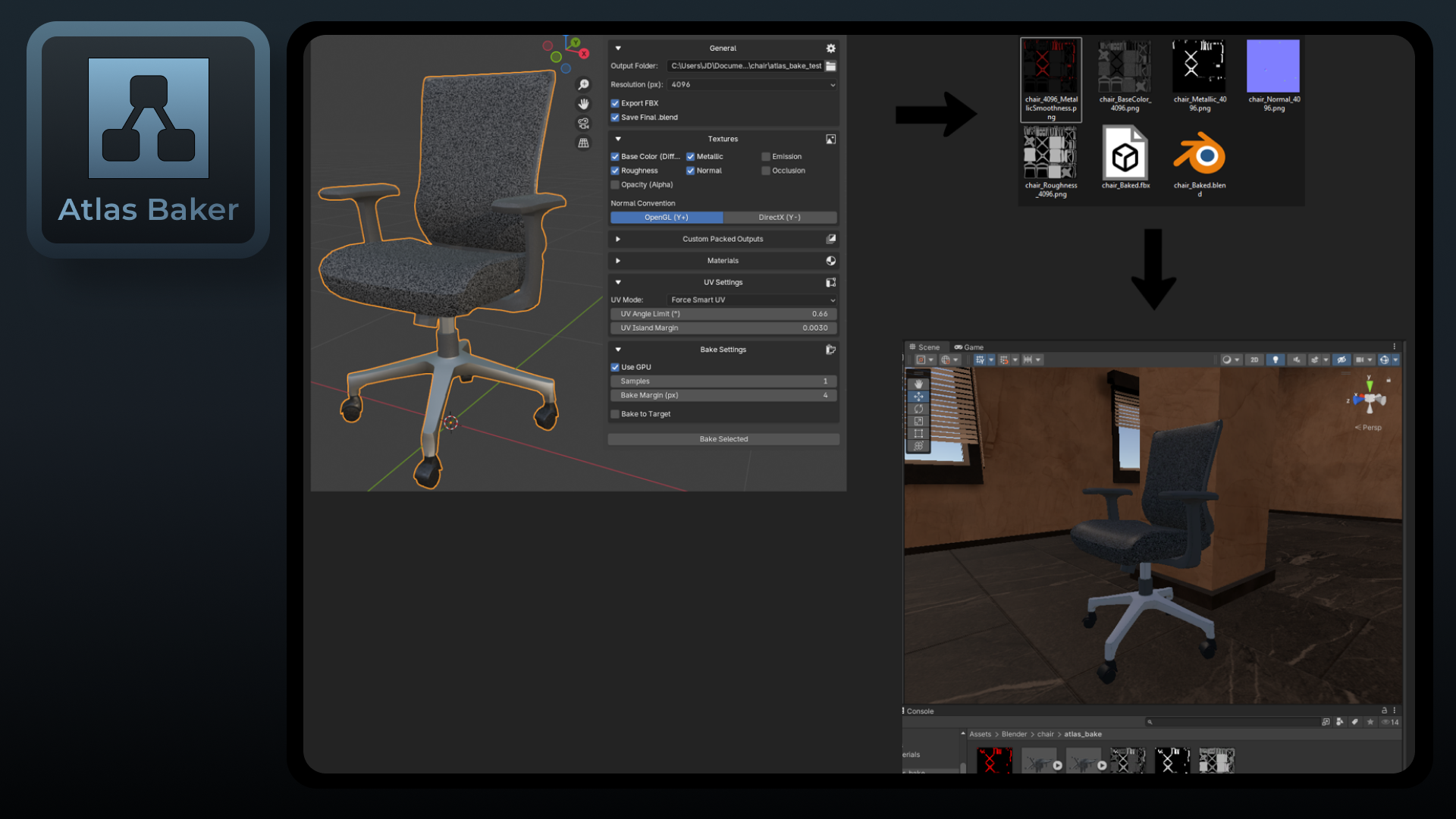
What's New
Latest Update Highlights
This release brings major workflow improvements for working with multiple objects, parallel baking, and richer export control:
- Multi-mesh baking: Select multiple meshes and bake them all in a single job. Each mesh gets its own textures, UV pass, and material configuration.
- Parallel task queue: Start bakes on multiple objects simultaneously. A new Tasks panel tracks every job's name, state (Running / Done / Error / Canceled), and live progress bar. Jobs persist across Blender sessions.
- Task Name & output subfolders: Each bake job requires a Task Name. Results are saved under
Output Folder / Task Name /, so runs for different iterations never overwrite each other. - FBX export sub-options: When Export FBX is enabled, three new sub-options appear: Include Armature (skeleton & weights, on by default), Include Shape Keys (blend shapes, on by default), and Include Animations (NLA actions, off by default).
- Keep Final .blend: Writes a single clean
.blendinto your output folder containing all baked meshes and their textures together, without touching your working file. - High→Low restriction: When Bake to Target is active, only one source mesh is allowed; selecting more blocks the bake with a clear error.
- Home icon shortcut: Click the home icon next to the Output Folder path to auto-set it to the folder of the current
.blendfile.
Overview
Texture baking condenses complex, multi-material shaders into a compact set of textures ready for engines like Unity and Unreal. Engines expect specific color spaces and often packed channels (Unity’s Metallic+Smoothness, Unreal/glTF’s ORM).
Typical manual steps
- Pick Cycles + samples
- Ensure correct UVs
- Create images & color spaces
- Handle scalar reroutes (Metal/Rough)
- Normals (OpenGL/DirectX)
- AO / Opacity
- Packed outputs (ex. MS/HDRP/ORM)
- Build atlas material & export
Atlas Bake solves this
Automates end-to-end with safe defaults and clear status.
- Correct color spaces per map
- OpenGL (Y+) / DirectX (Y−) normals
- Custom channel packs with presets
- Smart UV or Use Selected UV
- High→Low baking (max ray, cage, extrusion)
- Atlas material & optional FBX export
- Runs in a background headless Blender subprocess
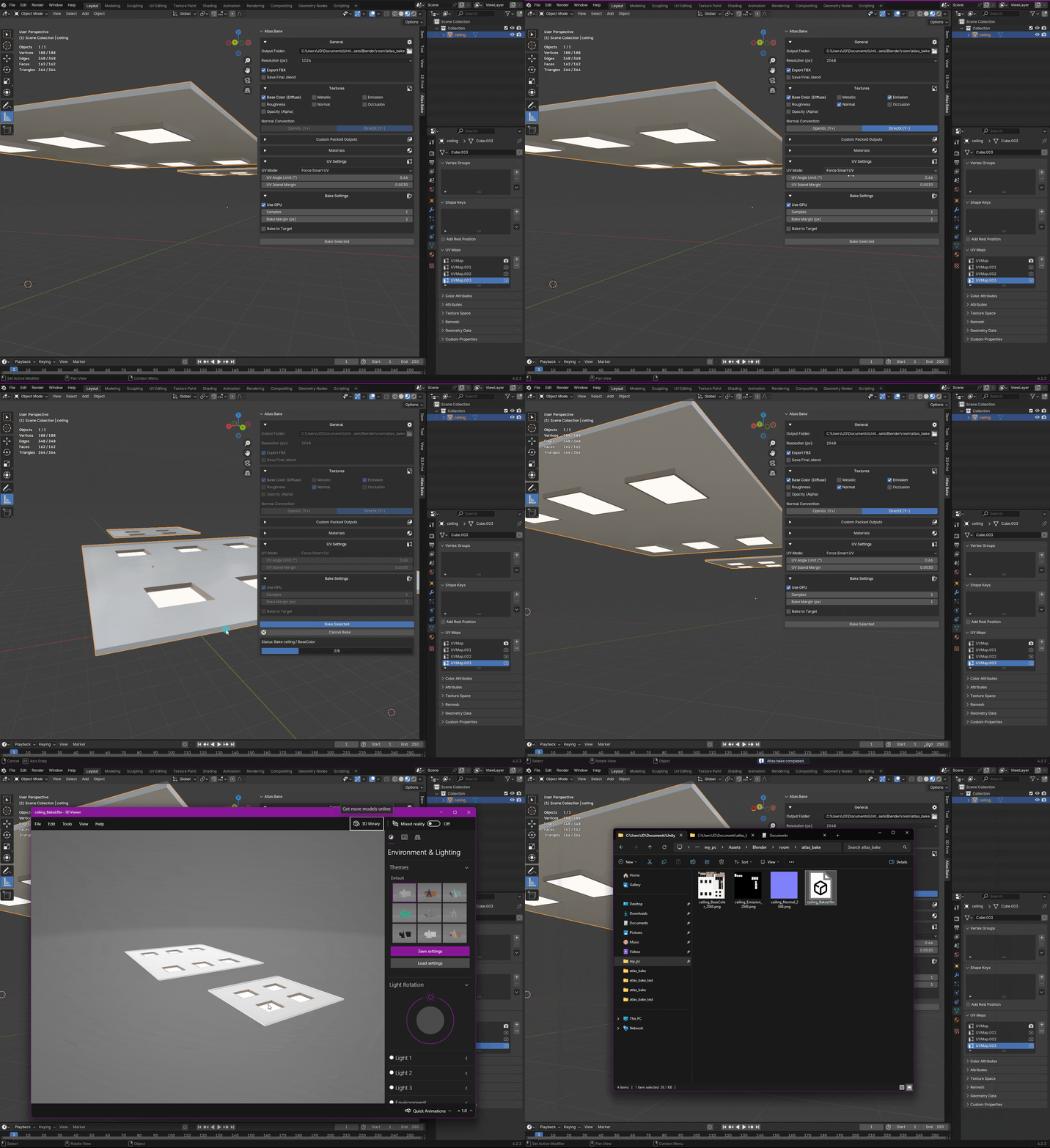
Key features at a glance
- Per-map baking: Base Color (sRGB), Emission (sRGB), Normal (Non-Color), Metallic (Non-Color), Roughness (Non-Color), AO (Non-Color), Opacity (Non-Color). Metallic & Roughness use a safe temporary Emission reroute for scalar accuracy.
- Material selection (whitelist): Only included materials are processed in Atlas/Smart-UV.
- Custom Packs: Build your own packs, or use the presets MS, HDRP Mask, ORM. Dependency-aware and reusable via a preferences folder (absolute and
//relative paths supported). - UV handling: MANUAL (pick existing UV) or SMART (auto-create & unwrap
AtlasBakedUVwith Angle Limit & Island Margin; applied to included materials).
- High→Low projected baking: Selected→Active (one source mesh) with Max Ray Distance, Cage Object, or Virtual Cage Extrusion.
- Exports: Optional FBX per mesh (UV0 enforced) with sub-options for Include Armature, Include Shape Keys, and Include Animations. Option to Keep Final .blend (all baked meshes in one file, relative or packed paths).
- Normals: OpenGL (Y+) or DirectX (Y−) with optional Flip Normal Y.
- Performance & Quality: GPU Compute (optional), Resolution, Bake Margin (px) vs UV Island Margin.
- Multi-mesh baking: Select multiple meshes and bake them all in a single job - each gets its own textures, UV pass, and material whitelist configurable per mesh.
- Parallel task queue: Start bakes on multiple objects simultaneously. The Tasks panel tracks every job (Running / Done / Error / Canceled) with a live progress bar. Jobs persist across Blender sessions; if Blender closes mid-bake the task is restored as an error with the last known progress.
- Clear status & safe operation: Work runs in a background, headless Blender subprocess using a temporary copy. Your open file remains responsive and unmodified while it receives regularly updates about the progress.
Installation
- Download the packaged
.zip. - In Blender: Edit → Preferences → Add-ons → Install… and select the file.
- Enable Atlas Bake.
- Find it in 3D View → N-Panel → Atlas Bake.
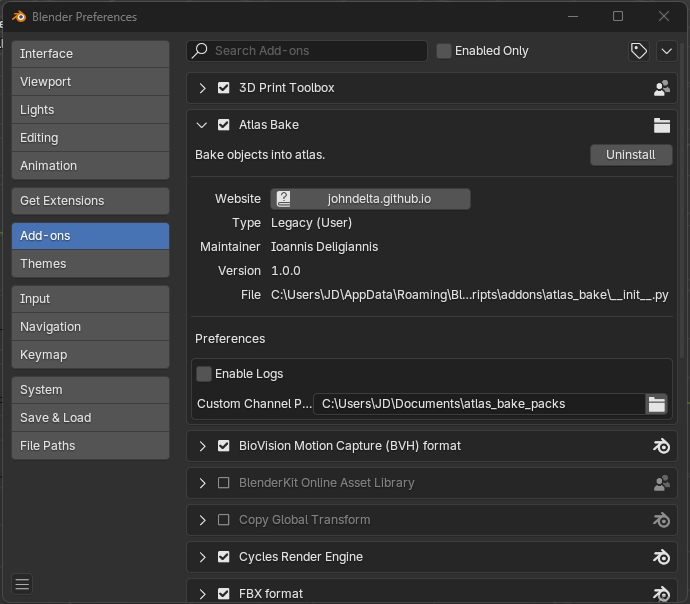
Add-on Preferences
- Enable Logs: write detailed bake logs (e.g.,
logs.txt) into the output folder. - Custom Channel Pack Folder: where your pack definitions live (absolute or
//relative to the current.blend).
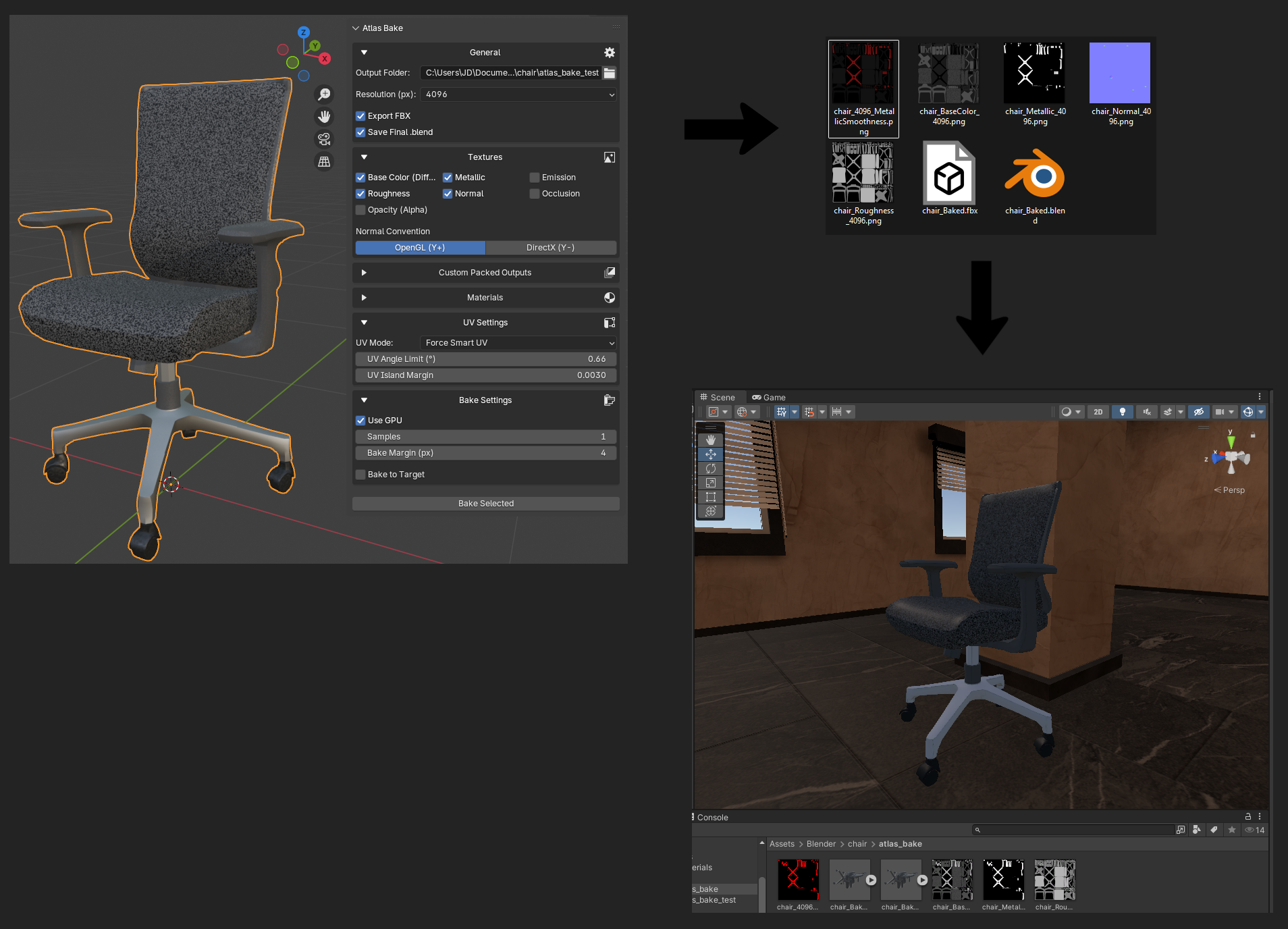
Quick Start - Simple model baking
- Select one or more source meshes. All selected meshes bake in the same job, each producing its own set of textures.
- In Textures, enable the maps you want.
- Choose UV Mode:
- MANUAL → a UV map dropdown appears per mesh (defaults to the first available UV layer). The Bake button stays disabled until every selected mesh has a UV map assigned.
- SMART → set UV Angle Limit & UV Island Margin.
- In Materials to Include, check materials to process. Materials are grouped by mesh - each group has All / None shortcut buttons (default: all included).
- Pick Normal Convention (OpenGL vs DirectX); optionally Flip Normal Y.
- Set Resolution, Samples, Bake Margin (px), and optionally Use GPU.
- (Optional) Add Custom Packs (or use the presets: MS/HDRP/ORM.)
- Choose a valid Output Folder. Click the home icon next to the path field to auto-set it to the folder of the current
.blend. - (Optional) Enable Export FBX (one file per mesh) and/or Keep Final .blend (all baked meshes in one file). When Export FBX is on, three sub-options appear:
- Include Armature (on by default) - exports skeleton & vertex weights.
- Include Shape Keys (on by default) - preserves blend shapes/morph targets.
- Include Animations (off by default) - bakes and exports all NLA actions.
- Enter a Task Name in the field above the Bake button. This identifies the job in the Tasks panel and becomes the output subfolder (e.g.
Output Folder/MyTask/). The Bake button stays disabled until a name, output folder, and (in MANUAL mode) a UV map for every mesh are provided. - Click Bake Atlas. The job appears in the Tasks panel with a live progress bar. Your open file stays safe and responsive - you can start additional bakes while this one runs.
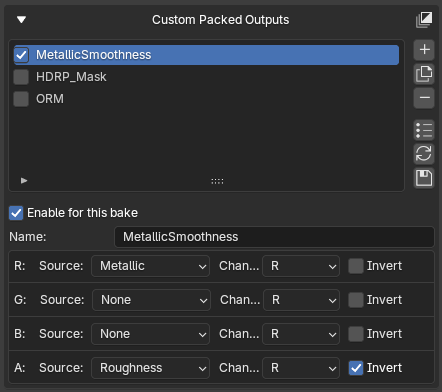
Custom Channel Packing, a Metallic–Smoothness example
Why pack channels? Engines often require packed maps to reduce sampler count and bandwidth, and to match expected inputs: Unity Standard/URP uses Metallic + Smoothness (A), glTF/Unreal use ORM (R=AO, G=Roughness, B=Metallic), and Unity HDRP uses a Mask Map (typically R=Metallic, G=AO, B=Detail, A=Smoothness).
Key concept: Metallic–Smoothness means R = Metallic, A = 1 − Roughness (Smoothness). ORM means R = AO, G = Roughness, B = Metallic.
- Follow the Quick Start steps to set up your bake.
- Open Custom Packs → New Pack, name it
MetallicSmoothness_Unity, set Output Format = RGBA (8-bit). - Map channels:
- R → Metallic
- G → None (0)
- B → None (0)
- A → Roughness with Invert (Smoothness)
- Click Bake to generate the packed texture.
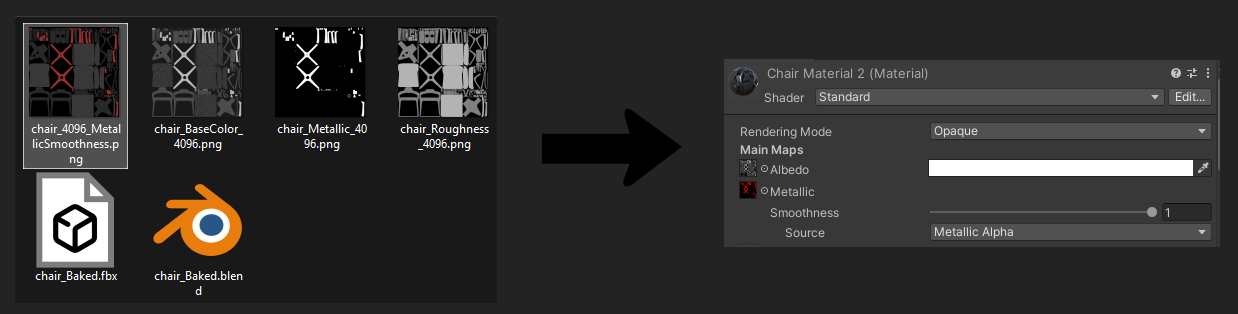
- Assign in-engine (Unity): set Base Map = BaseColor; Metallic Map = the packed Metallic–Smoothness (A channel drives Smoothness).
High → Low poly baking, a keyboard / keys scenario
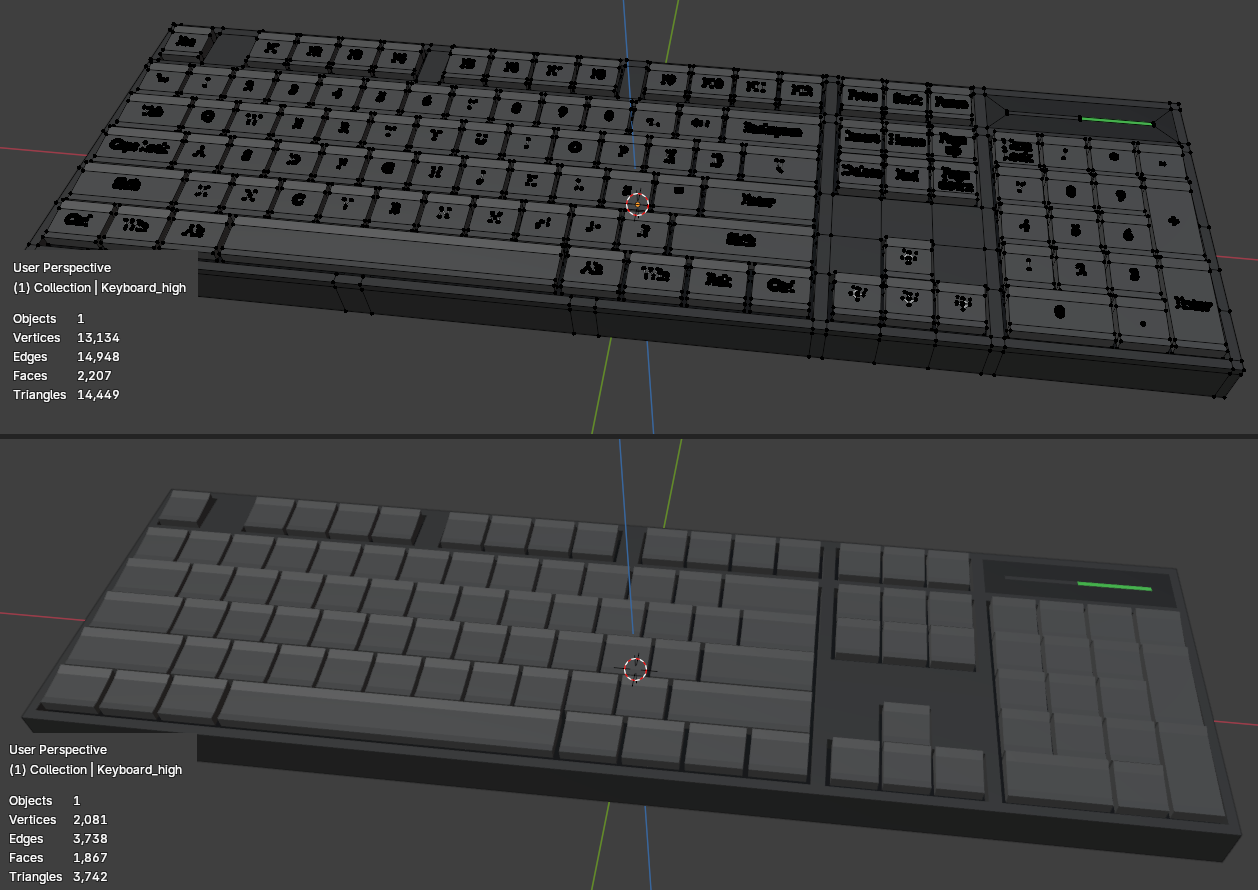
Goal: Bake the High keyboard (with text meshes) into the Low keyboard (no text meshes) so the low-poly keycaps get textures containing the legends.
- Follow Quick Start to prepare your settings.
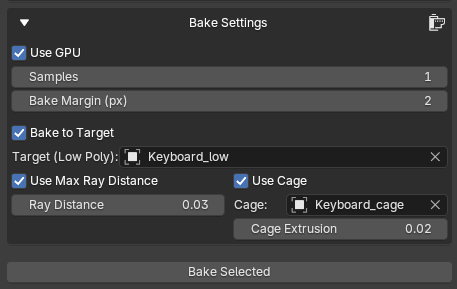
- Select Source & Target: Select High (source - exactly one mesh when using Bake to Target), enable Bake to Target, set Target = Low (receiver). Selecting more than one source mesh while Bake to Target is active will block the bake with an error. Keep both objects aligned with identical origins.
- Projection control:
- Start with Max Ray Distance ≈
0.2–0.5%of model size. - For tight gaps/decals, use a Cage or Cage Extrusion (~
0.2–0.5%outward). - Thin legends: add slight thickness on High (e.g., 0.2–0.5 mm) or rely on a cage to capture shallow relief.
- Start with Max Ray Distance ≈
- Click Bake and monitor the progress UI.
- Assign the baked textures to the Low model and verify the result.
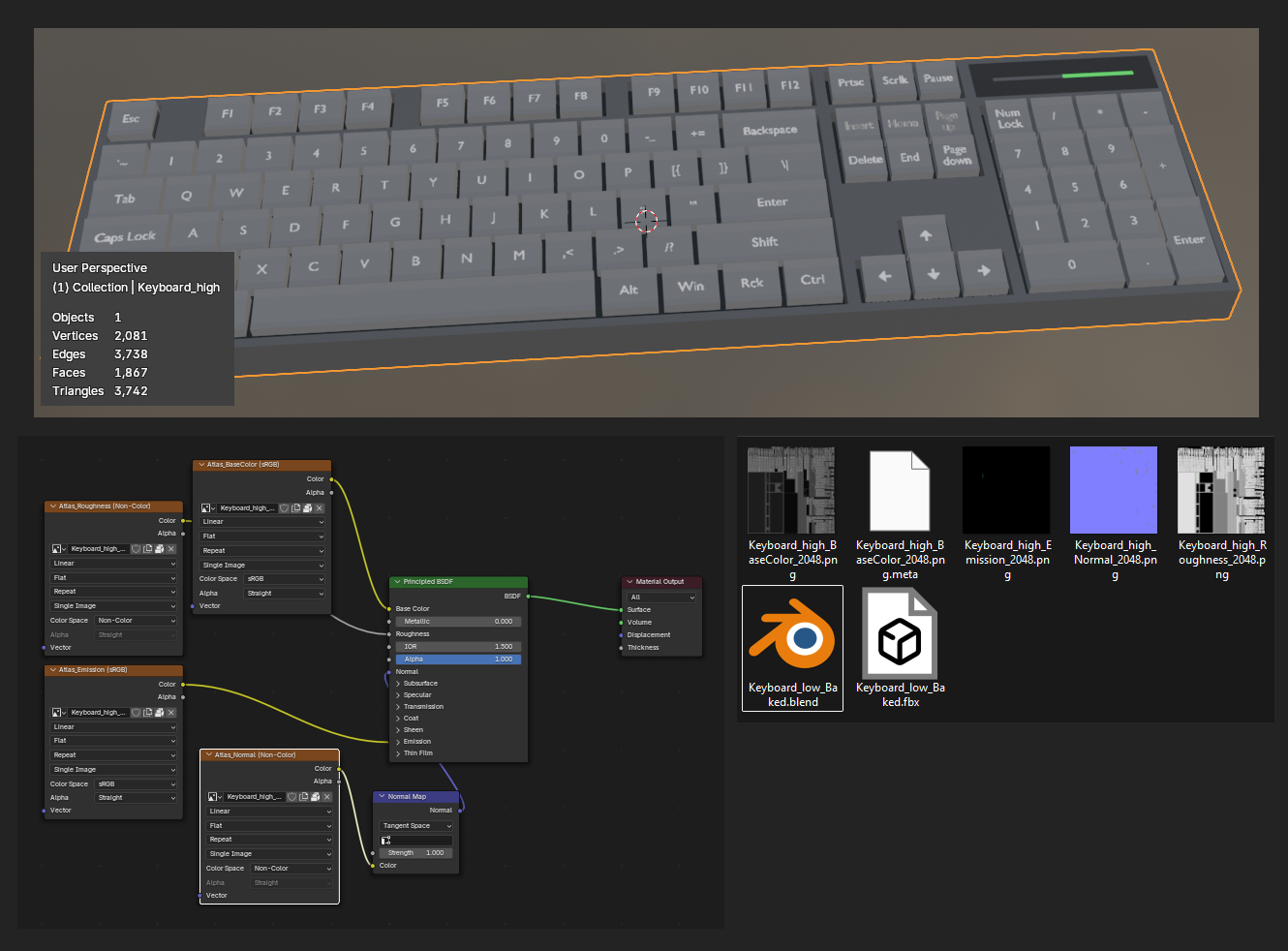
Output & naming
Each bake writes its files into a named subfolder inside your Output Folder, using the Task Name you provided. When multiple meshes are baked in a single job, each mesh produces its own set of textures - all written into the same subfolder:
Output Folder/
└── <Task Name>/
    ├── <Object1>_BaseColor_2048.png
    ├── <Object1>_Normal_2048.png
    ├── <Object1>_MS_2048.png          (if a Custom Pack is enabled)
    ├── <Object2>_BaseColor_2048.png   (second mesh, if multiple were selected)
    ├── <Object2>_Normal_2048.png
    ├── <Object1>.fbx                  (if Export FBX is enabled - one file per mesh)
    ├── <Object2>.fbx
    ├── <Task Name>_baked.blend        (if Keep Final .blend is enabled)
    └── logs.txt                       (if logging is enabled)
Typical texture file names:
<Object>_<Map>_<Resolution>.png
  # e.g., Crate_BaseColor_2048.png, Crate_Normal_2048.png
Packed outputs follow their pack name:
<Object>_MS_2048.png
  <Object>_HDRPMask_2048.png
  <Object>_ORM_2048.png
Tasks panel
The Tasks section at the bottom of the panel shows all jobs for the current session and any restored from a previous one:
| Column | Description |
|---|---|
| State icon | ⏱ Running · ✓ Done · ✗ Error · ⊘ Canceled |
| Name (Object) | The task name and source mesh(es); multiple meshes are shown comma-joined |
| Progress bar | Live step count from the background worker |
| ⚙ | Opens a popup with the full settings snapshot for that job |
| ? | Hover to read the error message (Error jobs only) |
| ✕ | Cancels a running job; removes a finished one |
| 🗑 (header) | Removes all Done / Error / Canceled jobs at once |
Jobs survive Blender being closed: when you reopen the file, any job that was running is restored as Error with the message "Blender was closed before the bake completed." and its last known progress. Completed and errored jobs persist until you explicitly remove them.
FAQ / Tips
Quick recovery:
- Click Cancel Bake. This drops a
cancel.flaginto the worker folder and the UI should clear within a few seconds. - If the UI still looks stuck, press Cancel Bake again, then toggle the panel (collapse/expand) or switch tabs to force a refresh.
- Open the Worker folder path shown in the panel (if displayed) and delete the temporary worker directory to clean up.
- As a last resort, save your .blend and restart Blender (your open scene was never modified by the worker.)
bake.log inside the worker folder for the crash reason (GPU memory, missing textures, etc.).
- Use GPU: In Preferences → System, enable your GPU (CUDA/OptiX/Metal). In Atlas Bake, enable Use GPU.
- Lower samples for scalar maps: BaseColor/Normal might need more samples in some pipelines, but Metallic/Roughness/AO usually look identical at 1–4 samples.
- Reduce texture size: Try 2K instead of 4K while iterating.
- Limit included materials/objects: Bake only what you need.
- Apply Scale/Rotation on high/low before high→low baking to avoid projection re-tries.
- Disable heavy modifiers (or use a duplicate export mesh) to reduce geometry the worker has to process.
- Close other heavy apps to free VRAM/RAM.
bake.log in the worker folder for time sinks (UV unwrap, subdivision, memory).
Recommended color spaces in Blender:
- sRGB: Base Color (albedo).
- Non-Color: Metallic, Roughness, AO, Opacity, packed channels, Normal maps.
- FBX: Engine-ready (Unity/Unreal friendly). Textures are written to your output folder; materials are set up to reference those files.
- .blend: A saved baked scene you can re-open and tweak.
- Paths starting with
//are relative to your .blend (e.g.,//atlas_bake_packs/). - If the .blend is unsaved, Atlas Bake resolves to a safe temporary location and shows the raw string in the UI so you can adjust it.
- Each job creates a worker folder for logs and intermediates; final textures and exports go to the output directory.
logs.text. These logs capture device selection, UV unwrap, image saves, and exporter output. It's the fastest way to spot missing textures or GPU memory errors.
cancel.flag to the worker folder and stops the job cleanly without touching your open scene. If you’ve mapped Esc to call the same operator, pressing Esc will do the same. Once canceled, the status changes to “Cancel requested…” and the UI clears when the worker exits.
Contact
Questions or issues? Email: john.deligiannis1@gmail.com.
License
GPL-3.0-or-later. See the LICENSE file for details.